
How To Keep Low Power Mode Always On On iPhone
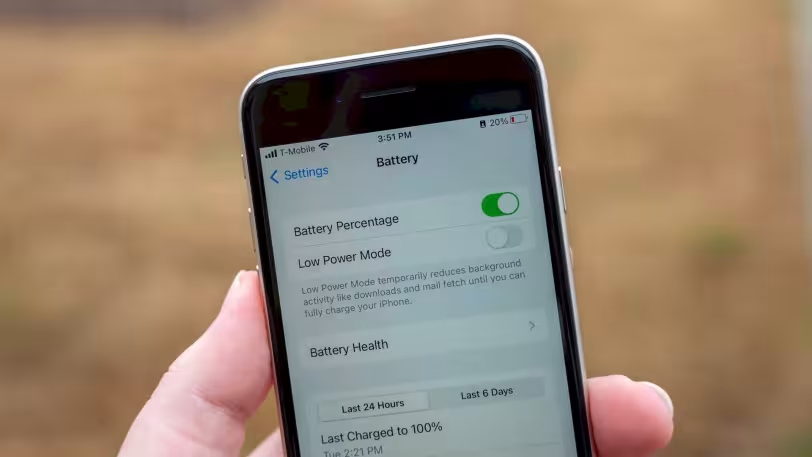
If you want to maximize battery life and keep Low Power Mode always enabled, Apple’s Shortcuts app offers a smart way to automate this setting. Here is a step-by-step guide to ensure it automatically turns back on whenever Low Power Mode is disabled:
Why You Should Always Use Low Power Mode
Low Power Mode is a built-in iOS feature designed to reduce energy consumption by limiting background activity, lowering screen brightness, and optimizing system performance. Normally, this mode turns off when your iPhone is fully charged, but with automation, you can keep it always on and significantly extend battery life.
Guide To Automating Low Power Mode
1. Open The Shortcuts App
Launch the Shortcuts app on your iPhone. If it is not installed, download it from the App Store.
2. Go To The Automation Tab
Tap the “Automation” tab from the bottom menu. Here, we will create a new personal automation for Low Power Mode.
3. Create A New Automation
- Tap the plus (+) icon in the top-right corner.
- Scroll down and find the “Low Power Mode” trigger.
4. Set The Trigger
- Select “Is Turned Off”.
- Deselect “Is Turned On”.
- Tap “Run Immediately”.
5. Add An Action
- Tap “Next”, then select “New Blank Automation”.
- Tap “Add Action” and search for “Set Low Power Mode”.
- Select and confirm the “Set Low Power Mode” action.
6. Save And Enable
Tap “Done” to save the automation. Now, whenever Low Power Mode is turned off, your iPhone will automatically turn it back on!
Final Thoughts: A Practical Way To Extend Battery Life
By setting up this automation, Low Power Mode will always remain active. This helps reduce unnecessary power consumption and keeps your device running more efficiently. It is an effective and effortless way to extend battery life, especially during long trips or when you are away from a charger.
Your iPhone is now always ready for maximum battery efficiency! If you want more customization or battery-saving tips, feel free to ask.